
NotiCord now supports multiple Notion workspaces and Discord servers
 Lukasz Wiatrak
NotiCord started with a simple setup model: one Notion workspace, one Discord server, one place to send notifications and run Discord workflows.
That works well for small teams, but real teams often grow past it. Product and support might live in one Discord server while the community team uses another. A company might keep an internal Notion workspace separate from a customer-facing one. Until now, that meant choosing one connection or creating a separate setup.
This release changes that. Team and Pro subscriptions can now connect multiple Notion workspaces and multiple Discord servers to one NotiCord subscription.
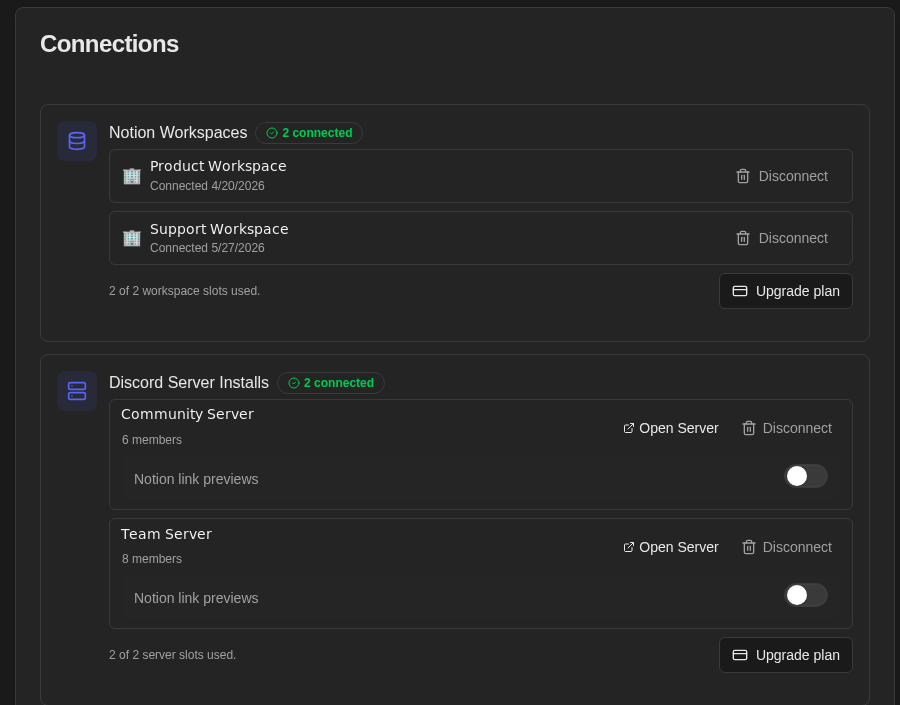
What changed
Owners can connect another Notion workspace from Settings, then choose the right workspace when creating notification rules, scheduled summaries, create commands, and page lists.
The same idea now applies to Discord servers. If your plan includes more than one server install, you can add another server and choose the destination server when configuring channel-based workflows.
The existing single-workspace setup stays simple. If you only have one Notion workspace or one Discord server connected, NotiCord keeps the old UI shape and does not ask you to choose something obvious.
Why this matters
This is mostly about reducing awkward setup boundaries.
For example, a team can now:
- Send product release notes from one Notion workspace to a public Discord server.
- Keep internal engineering updates in a private workspace and private server.
- Run support workflows in another Discord server without creating a separate NotiCord subscription.
- Keep workflow ownership, billing, and plan limits in one place.
It also makes NotiCord a better fit for teams that organize work by department, project, or community instead of keeping everything inside one shared workspace.
Where to configure it
Open Settings in NotiCord. The Connections section now shows connected Notion workspaces and Discord server installs. From there, owners can add or disconnect connections, see plan slot usage, and manage per-server options such as Notion link previews.
When more than one workspace or server is connected, workflow editors show the extra selector only where it matters. Solo setups stay clean, and multi-server setups get the control they need.
You can see current plan limits on the NotiCord pricing page, or start from NotiCord if you have not connected Notion and Discord yet.